liteclip
A Windows tray app that records the last few minutes of your screen.
LiteClip is a Windows tray app. It keeps the last few minutes of your screen in a memory buffer, continuously, with nothing on disk. Press Ctrl+Shift+S and it dumps the buffer to MP4. Built-in editor can compress clips to fit Discord, or whatever else has a hard size limit. Free, open source, written in Rust.
why this exists
I built LiteClip because I was personally unhappy with the existing options. They might work fine for you. They didn't for me.
Shadowplay only works on Nvidia cards. Adrenalin's clip recorder ships with the AMD driver and captures footage fine, but the editor only does single-segment trims at one-second precision, with no way to re-encode a clip to a target file size. Medal does plenty, but the desktop client is heavy and the whole product is built around uploading clips to medal.tv. OBS is great if I'm streaming, but it's a recording studio when I just want the last thirty seconds.
What I wanted was a tray app that starts automatically, quietly buffers my screen, gives me one keystroke to save, and then actually lets me do something useful with the clip. So I wrote it. If you've hit the same walls, this might be useful to you too.
how it works
A lock-free ring buffer in memory holds 5 to 300 seconds of frames and audio. It's overwritten continuously, so nothing reaches the disk until you ask for it. Press Ctrl+Shift+S and the buffer goes to whatever hardware encoder your GPU has (NVENC for Nvidia, AMF for AMD, QSV for Intel), and comes out as an MP4. The encoder reads frames straight from the GPU's D3D11 surfaces, with no extra copy across the PCIe bus.
If the hardware encoder isn't available, it falls back to x265 on the CPU. Clips are named after the fullscreen game that was running, and dropped in your save directory.
editing
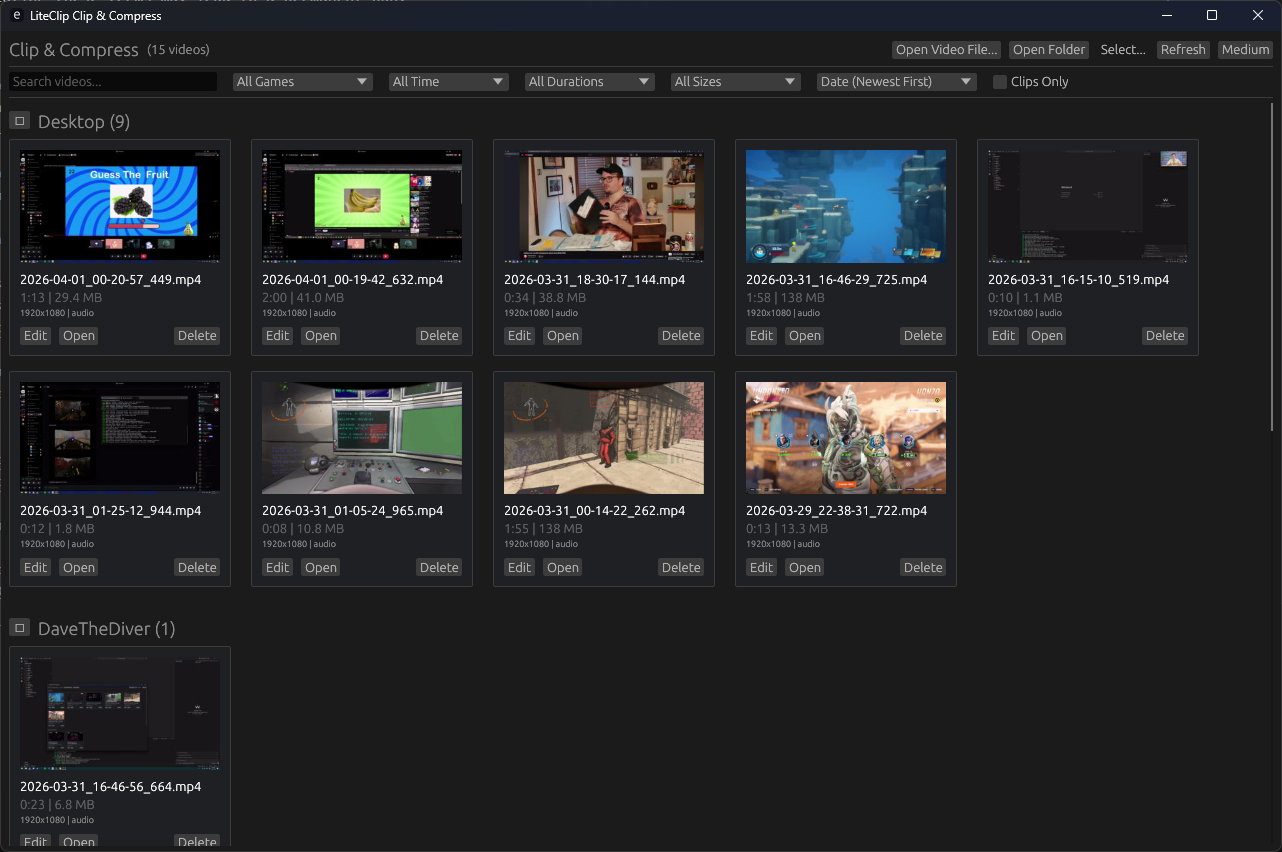
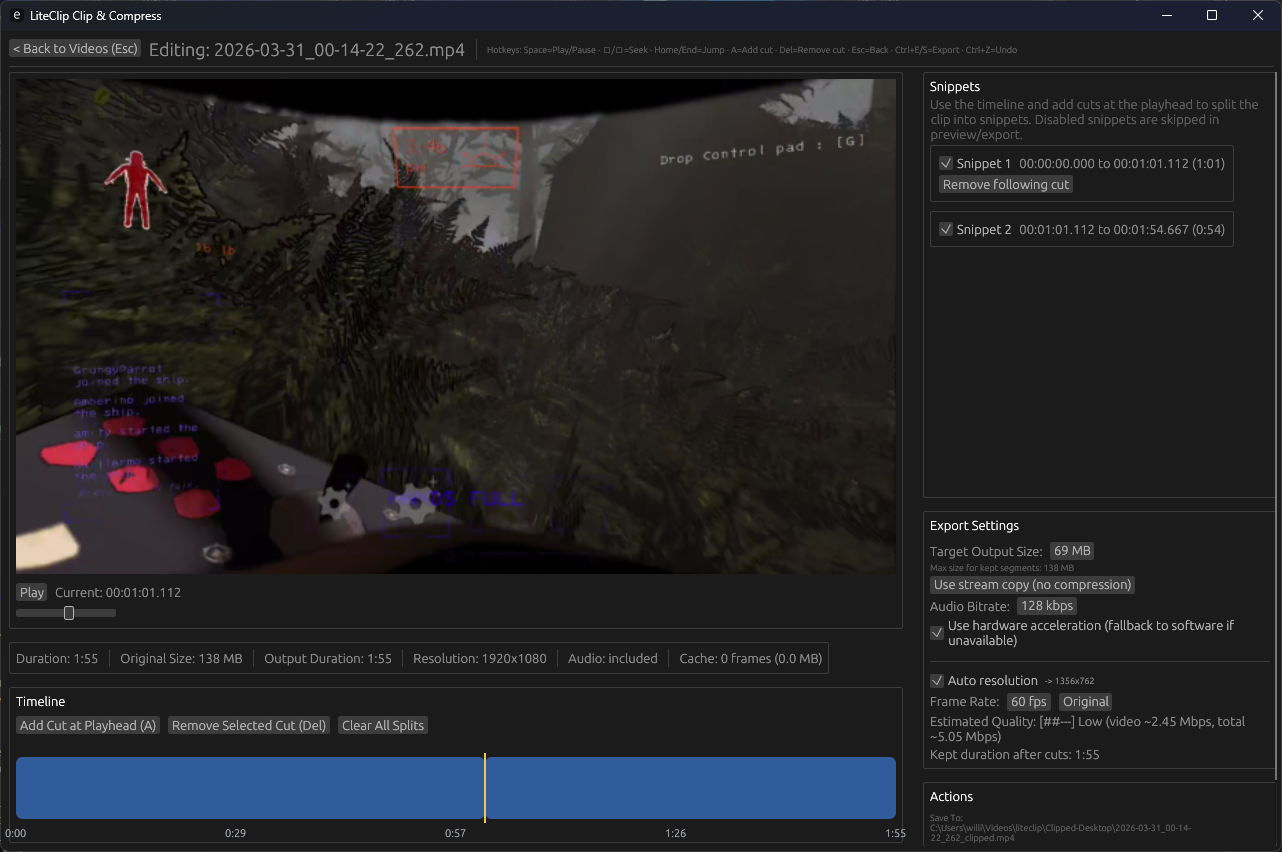
Ctrl+Shift+G opens the gallery. Pick a clip, scrub the timeline, drop a few cuts to keep only the parts you want, then export. The default export does a stream copy, so trimming a thirty-second clip takes about as long as opening it. No quality loss, no re-encode.
The export panel also has a target-size compressor. Set it to 25 MB, or 10 MB, and it works out the bitrate so the clip fits Discord's upload limit (or wherever else has a hard cap). It's the feature I use most. None of the bundled vendor tools have it, which is why most people end up uploading clips to a file host before sharing them.
screenshots
configuration
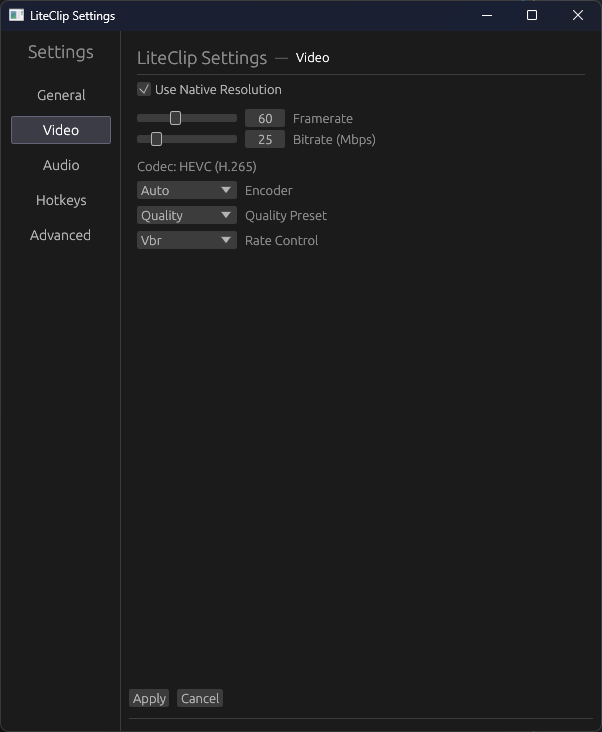
Settings live in %APPDATA%\liteclip\config.toml. The UI exposes all of them, so you don't have to touch the file. Audio levels per source, mic input, RNNoise suppression, noise gate, loudness normalisation. Resolution can be native or scaled. Hotkeys are remappable. Buffer length goes from five seconds to five minutes.
specifications
- replay buffer5 – 300 seconds
- video bitrate1 – 150 Mbps
- frame rate10 – 144 fps
- codecHEVC (H.265)
- gpu encodersNVENC, AMF, QSV; software fallback
- rate controlVBR, CBR, CQ
- frame transportD3D11, zero-copy to encoder
- audioRNNoise, normalisation, noise gate
- exportstream copy, target file size, custom bitrate
- platformWindows 10 / 11
- toolchainRust 1.94+, FFmpeg 6.0+
- licenseMIT
hotkeys
- Ctrl+Shift+Ssave the buffer
- Ctrl+Shift+Gopen the gallery
- Ctrl+Shift+Rtoggle recording
All three are remappable, and they work in fullscreen games.
what's tested, what isn't
I wrote LiteClip on an AMD machine, so the AMF encoder path works. It's the one I run every day. The NVENC and QSV paths are written too, but I don't own the hardware to test them on, and shipping untested code while pretending otherwise feels a bit dishonest.
get it
The MSI installer is on the releases page. It pre-bundles the FFmpeg DLLs, so there's nothing else to set up. Install it and it lands in your tray. If you'd rather build from source, the repo is here, and the README walks through it.
If it works, a star helps. If it breaks, an issue helps more.